

Batch Operations
Learn about batch operations in Supa Colors Studio.
Overview
Supa Colors Studio offers powerful batch operations to generate and edit multiple color palettes simultaneously. These features allow you to quickly create cohesive color systems with consistent properties, saving time and ensuring uniformity across your palettes.
There are two main batch operations available: Generate Palettes for creating new palettes from scratch, and Edit Palettes for modifying multiple existing palettes at once.
Generate Palettes
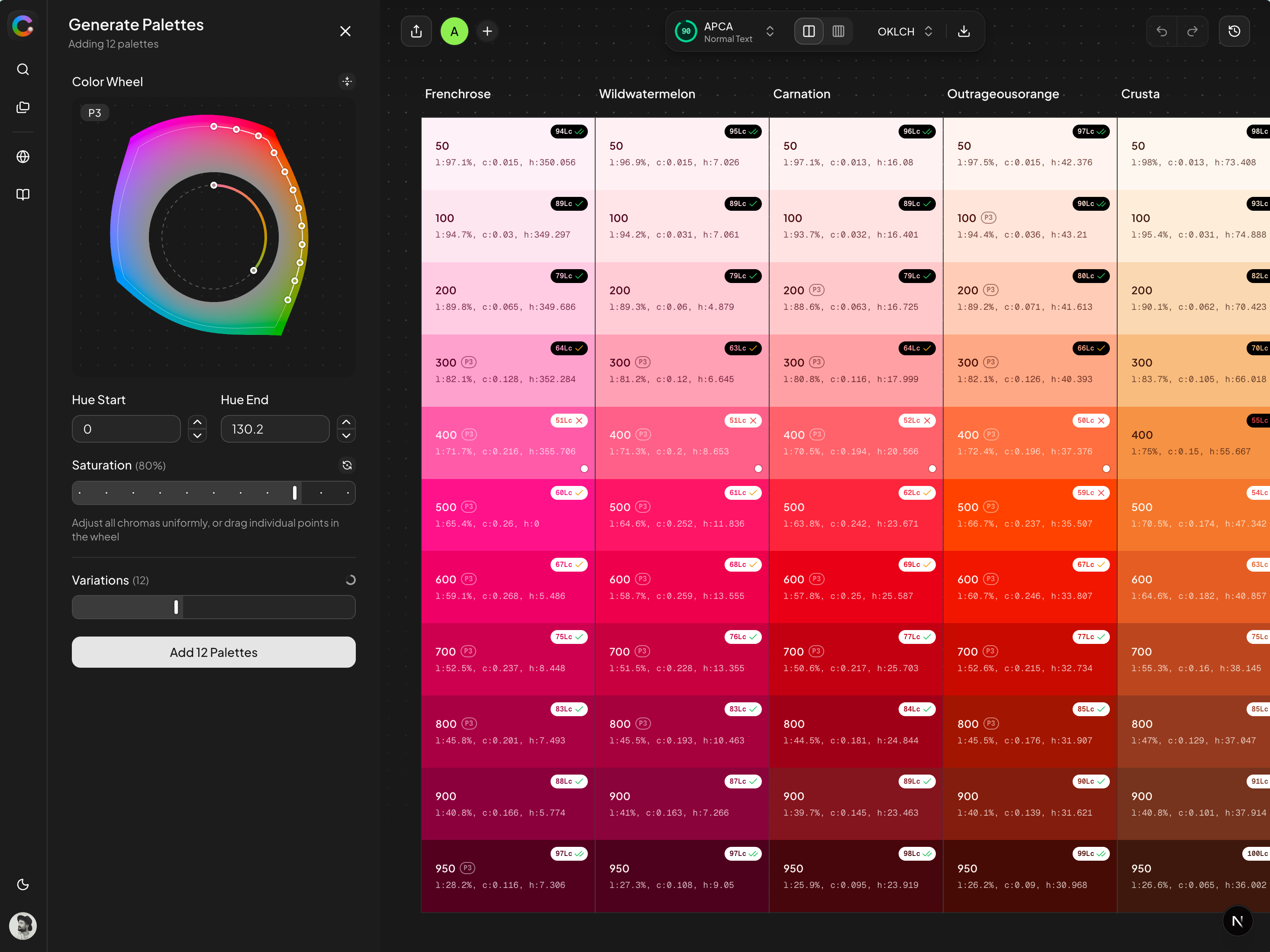
The Generate Palettes feature allows you to create multiple palettes at once by selecting a range of hues from the color wheel. This is the fastest way to build a complete color system from scratch.
How to access:
- In the Editor Sidebar, navigate to the Palettes section
- Click the "Batch Create" button (appears when no palettes are selected)
Available controls:
- Color Wheel: Visual selector showing the hue range. Drag the handles to adjust the start and end hues. The wheel displays the selected gamut (P3 or sRGB).
- Hue Start: The starting hue angle (0-360°) for the palette generation range.
- Hue End: The ending hue angle (0-360°) for the palette generation range.
- Saturation: Global chroma/saturation level (0-100%). Adjusts the intensity of all generated colors. You can also drag individual points on the color wheel for per-palette control.
- Variations: Number of palettes to generate within the selected hue range (2-24). The palettes will be evenly distributed across the hue range.
Each generated palette includes:
- 11 color steps (50, 100, 200, 300, 400, 500, 600, 700, 800, 900, 950)
- OKLCH values displayed for each color (Lightness, Chroma, Hue)
- APCA contrast scores with badges indicating accessibility compliance
- Gamut indicators showing if colors are within sRGB or require P3
Edit Palettes (Batch Editor)
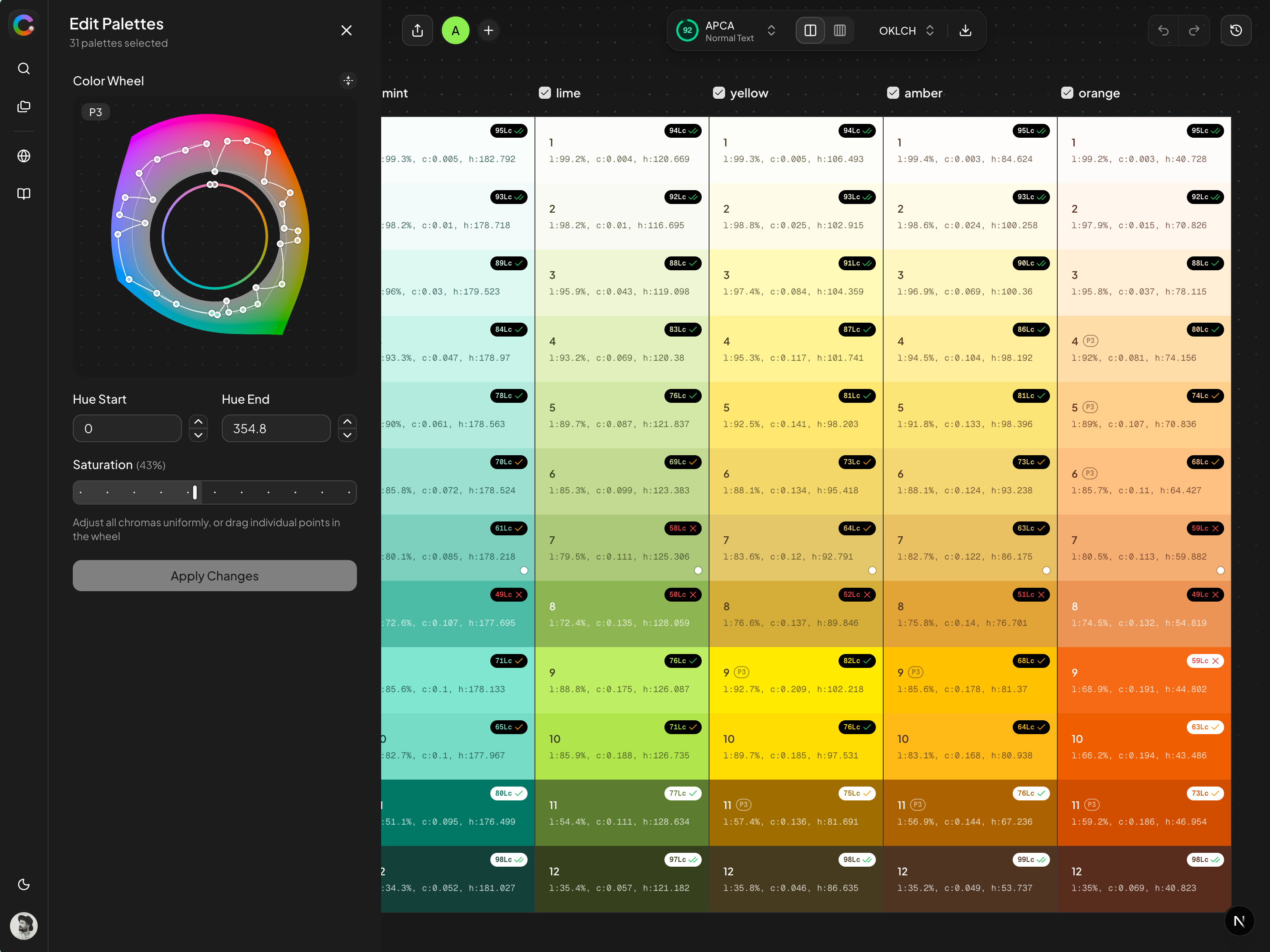
The Edit Palettes feature allows you to modify multiple existing palettes simultaneously, applying consistent changes across all selected colors. This is ideal for rebalancing hues, adjusting saturation uniformly, or creating variations of existing palettes.
How to access:
- Select multiple palettes using checkboxes or Shift+Click
- Click the Edit button in the toolbar, or
- Right-click and select "Edit Selected Palettes"
Available controls:
- Color Wheel: Shows the current hue distribution of selected palettes. Drag handles to shift hues and redistribute colors.
- Palette Checkboxes: Toggle individual palettes on/off for editing. Only checked palettes will be affected by changes.
- Hue Start / End: Redistribute the hues of selected palettes across a new range. Useful for spreading or condensing the hue spectrum.
- Saturation: Adjust the global saturation for all selected palettes. Make all palettes more vibrant or muted at once.
- Apply Changes: Commits the changes to all selected palettes. Changes are non-destructive until you click this button.
Common use cases:
- Rebalancing Hues: Spread your palettes evenly across a hue range for better visual harmony.
- Adjusting Saturation: Make all palettes more vibrant or muted at once to match a design direction.
- Creating Variations: Quickly test different color distributions and see the results in real-time.
- Ensuring Consistency: Ensure all palettes have uniform saturation levels for a cohesive design system.
Color Information Display
Both batch interfaces display detailed color information for each step in the palettes:
l:97.1%, c:0.013, h:16.08- l (Lightness): 0-100% in OKLCH perceptual lightness. Higher values are lighter colors.
- c (Chroma): 0-0.4 saturation intensity. Higher values are more vibrant colors.
- h (Hue): 0-360° hue angle on the color wheel.
Contrast badges on each color indicate APCA accessibility compliance:
- Green Badge (✓): Passes APCA contrast for the selected text size.
- Red Badge (✗): Fails APCA contrast requirements.
- P3 Indicator: Color requires Display P3 gamut and may appear different on sRGB displays.
Best Practices
Follow these best practices for efficient batch palette workflows:
- Start with Generate: Use batch generation to quickly create a base color system, then refine individual palettes as needed.
- Refine with Edit: Use batch editing to fine-tune hues and saturation across multiple palettes for consistency.
- Check Contrast: Always verify APCA scores for accessibility compliance, especially for text-on-background combinations.
- Consider Gamut: Be mindful of P3 vs sRGB for your target audience. P3 colors may not display correctly on older devices.
- Export Often: Export your palettes in multiple formats to test in your actual design and development environments.