
Creating Palettes
Learn about creating palettes in Supa Colors Studio.
Algorithms Overview
Algorithms determine how shades in a palette are generated. Supa Colors Studio offers two powerful algorithms, each suited for different use cases.
- Curve Algorithm: Full manual control over channel distributions (lightness, chroma, hue, opacity) with custom curves. You define exactly how each channel behaves across the palette using Bezier, Tangent, or Multi-point curves. Ideal for complex palettes, custom brand colors, opacity-based scales, and when you need precise control over every shade.
- Pattern Algorithm: Keyframe-based algorithm that replicates the exact distribution behavior of popular design systems like Tailwind, Material UI, Ant Design, and more. Uses keyframes positioned along the hue spectrum (0-360°) to interpolate channel values. Automatically adapts to your base color while maintaining the original system's characteristics. Perfect for maintaining compatibility with existing design systems or creating consistent palettes quickly.
The Pattern Algorithm uses a sophisticated keyframe system where each channel (Lightness, Chroma, Hue Shift, Alpha) has keyframes at different hue positions. When generating a palette, the algorithm interpolates between keyframes based on your base color's hue, creating smooth transitions that match the original system's behavior. See the Pattern Editor section for details on how to create and edit patterns.
Pattern Editor
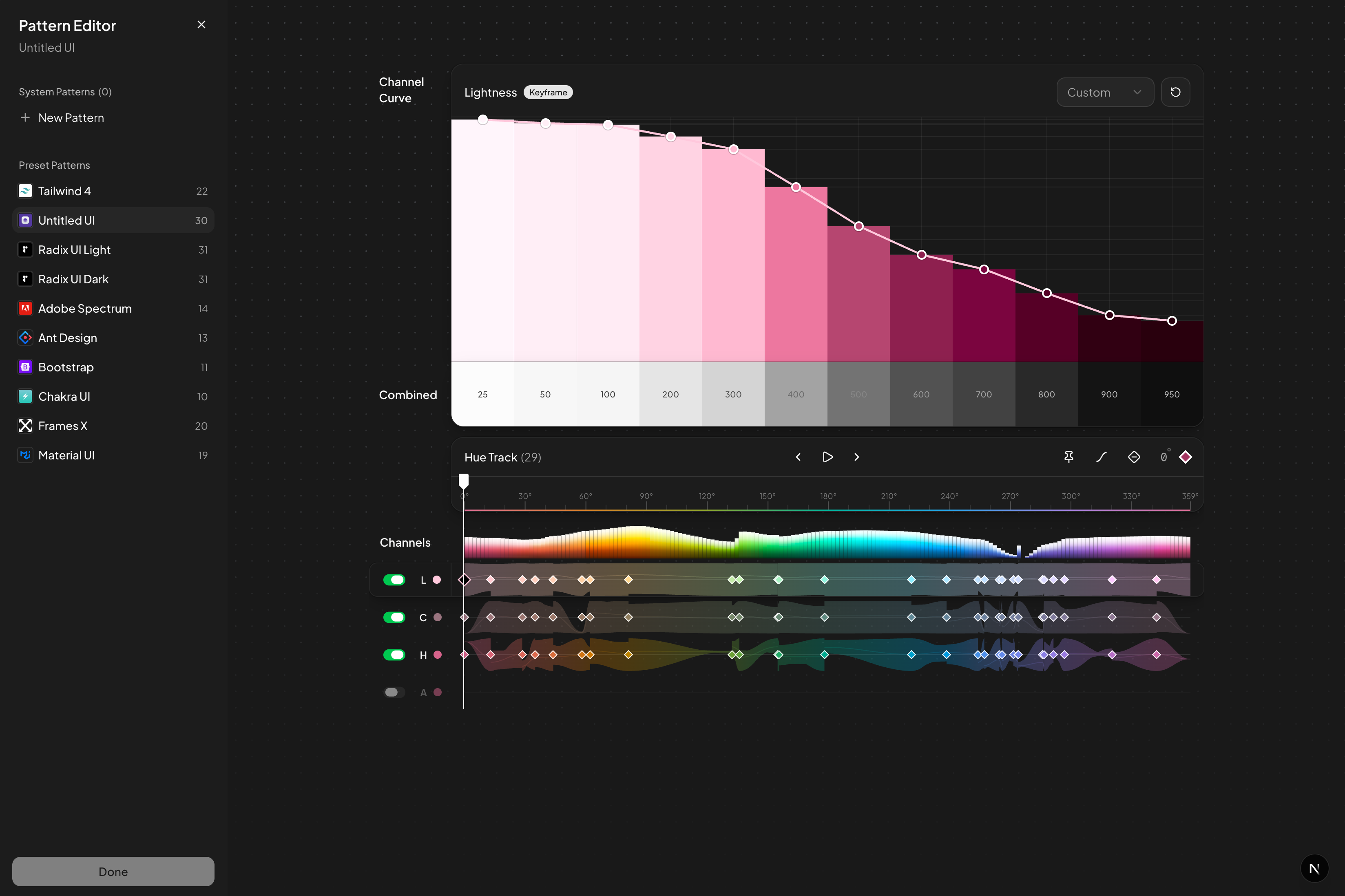
The Pattern Editor is a powerful visual interface for creating and editing pattern-based algorithms. It allows you to define how color channels behave across the entire hue spectrum (0-360°) using keyframes and interpolation.
What is a Pattern?
A Pattern is a collection of keyframes that define channel distributions (lightness, chroma, hue shift, alpha) at specific hue positions. When you generate a palette, the algorithm interpolates between keyframes based on your base color's hue, creating colors that match the pattern's behavior.
Channels
Each pattern has four independent channels that can be enabled or disabled:
- Lightness (L): Controls the brightness of colors. Keyframes define lightness curves (one value per shade) at specific hue positions. The algorithm interpolates between keyframes to create smooth transitions.
- Chroma (C): Controls color saturation/intensity. Keyframes define chroma curves at hue positions. The algorithm adapts chroma values to match your base color's saturation level while preserving the pattern's relative distribution.
- Hue Shift (H): Controls hue rotation across the palette. Keyframes define how much the hue shifts at each shade position. Useful for creating color gradients or maintaining hue consistency.
- Alpha (A): Controls transparency. Keyframes define opacity curves. Useful for creating opacity-based scales or maintaining transparency consistency.
Tracks and Timeline
The Pattern Editor displays each channel as a horizontal track spanning the hue spectrum from 0° to 360°. Each track shows:
- Keyframes: diamond markers positioned at specific hue values
- Interpolation curves: visual representation of how values change between keyframes
- Playhead: vertical line showing the current hue position being edited
- Channel preview: gradient showing how the channel affects colors across hues
Keyframes
Keyframes are anchor points that define channel values at specific hue positions. Each keyframe contains:
- Hue position: where on the spectrum (0-360°) this keyframe is positioned
- Curve values: an array of values, one for each shade in the palette
- Interpolation mode: how to transition to the next keyframe (hold, linear, ease, ease-in, ease-out, ease-in-out)
When you select a keyframe, you can edit its curve using the Curve Editor. The curve defines how the channel value is distributed across all shades at that hue position. See Curve Editor for available curve options.
Interpolation
Between keyframes, values are interpolated using the selected easing function:
- Hold: Keeps the previous keyframe's values until the next keyframe. Creates step-like transitions.
- Linear: Smooth linear interpolation between keyframes. Creates uniform transitions.
- Ease: Smooth easing with acceleration and deceleration. Natural-feeling transitions.
- Ease-in / Ease-out / Ease-in-out: Variations of easing with different acceleration curves. Fine-tune transition feel.
The Pattern Editor also handles circular interpolation: when generating a color at hue 350° with keyframes at 340° and 10°, it wraps around the spectrum to interpolate correctly.
Creating Custom Patterns
You can create custom patterns by editing an existing pattern (preset or custom) and saving it with a new name. Custom patterns are stored at the Color System level and can be reused across multiple styles and palettes.
- Open the Pattern Editor from a style or palette using a Pattern algorithm
- Select or create a pattern to edit
- Modify keyframes, add/remove keyframes, adjust curves, or change interpolation modes
- Click "Create Pattern" to save as a new custom pattern
- Give it a descriptive name (e.g., "My Brand Primary")
- The custom pattern is now available for selection in all styles
Pattern Presets
Pattern Presets are professionally crafted keyframe configurations based on well-known design frameworks and libraries. They are used with the Pattern Algorithm to replicate the exact color distribution behavior of systems like Tailwind CSS, Material UI, Ant Design, and more.
When you use a Pattern Preset, the Pattern Algorithm interpolates keyframes based on your base color's hue, ensuring that generated palettes maintain the same characteristics as the original system while adapting to your specific colors.
Available Presets
Supa Colors Studio includes accurate pattern presets from major design systems:
- Tailwind CSS: Utility-first CSS framework patterns. Industry standard for modern web development.
- Untitled UI: Complete design system patterns with extensive color options. Perfect for SaaS and web applications.
- Radix UI: Accessible component library patterns with carefully tuned color scales.
- Adobe Spectrum: Adobe's design system patterns for creative applications. Professional-grade with accessibility focus.
- Ant Design: Enterprise-grade design system patterns from Alibaba. Optimized for complex applications.
- Bootstrap: The world's most popular CSS framework patterns. Classic color distributions.
- Chakra UI: Modular and accessible component library patterns. Clean, modern distributions.
- Frames X: Modern design toolkit patterns. Optimized for landing pages and marketing.
- Material UI: Google's Material Design color patterns. Comprehensive distribution for primary, secondary, and accent colors.
How to Use Pattern Presets
There are two ways to use Pattern Presets:
- In Style Settings: When creating or editing a Style, select "Pattern" as the algorithm and choose a preset from the dropdown (e.g., pattern:tailwind-4). All palettes using this style will generate colors using the selected pattern.
- In Pattern Editor: Open the Pattern Editor to view, compare, and customize pattern presets. You can use a preset as-is or create a custom pattern based on it.
Pattern Presets can also be used as the base for Custom Patterns. Edit a preset in the Pattern Editor and save it as a new custom pattern to create your own variations.
Custom Patterns
Custom Patterns are reusable pattern configurations that you create and save at the Color System level. They allow you to define your own keyframe-based generation patterns that can be used across multiple styles and palettes.
Custom Patterns are useful when:
- You want to replicate a specific color distribution behavior across multiple palettes
- You need to maintain brand consistency with a custom pattern
- You want to create variations of popular systems
- You need to save and reuse complex pattern configurations
Custom Patterns are created by editing a pattern in the Pattern Editor and saving it with a custom name. Once saved, they appear alongside preset patterns (like Tailwind, Material UI) and can be selected when creating or editing styles.
System Templates
When creating a new Color System, you can start from a System Template. These are complete pre-built color systems based on popular design frameworks.
System Templates include all collections, styles, and palettes from the original design system. They provide a complete starting point that you can use as-is or customize to match your brand.
You can also find community-shared color systems in the Community section, which may include both official templates and user-created systems. See Sharing & Publishing for how to publish your own systems.
Style Templates
Style Templates are predefined configurations that you can quickly apply to a style or palette. Each template configures algorithms and curve distributions optimized for specific use cases. Templates use the Curve Algorithm and can be customized after application.
- Light Style: Optimized for light backgrounds. Generates lighter shades with lightness distribution starting from high values (98%) towards darker values (20%). Uses ease-in curve for smooth transitions. Ideal for light-themed applications and websites.
- Dark Style: Optimized for dark backgrounds. Inverts lightness distribution starting from low values (20%) towards lighter values (95%). Uses linear curve for consistent progression. Perfect for dark-themed applications and modern UIs.
- Opacity Scale: Creates a scale based on opacity using the Curve algorithm with opacity channel enabled and other channels disabled. Keeps color and lightness constant, varying only alpha from 10% to 95% with ease-out curve. Ideal for overlay colors and transparency effects.
- Vivid Colors: High saturation vibrant colors with enhanced chroma. Uses high chroma values (90-100%) and optimized lightness distribution (90% to 20%) with ease-in-out curve. Perfect for bold, eye-catching palettes and marketing materials.
- Warm Shift: Warmer color variants with hue rotation (+20°) and consistent chroma. Uses ease-out lightness curve. Creates palettes that feel warmer and more inviting. Great for brands wanting a friendly, approachable feel.
- Cool Shift: Cooler color variants with negative hue rotation (-20°) and consistent chroma. Uses ease-out lightness curve. Creates palettes that feel cooler and more professional. Ideal for tech brands and corporate designs.
Curve Editor
The Curve Editor is used exclusively with the Curve Algorithm. It allows you to define how lightness, chroma, hue, and opacity values are distributed across palette shades using custom curves.
Channel Distributions
Each channel (Lightness, Chroma, Hue, Opacity) can be independently enabled or disabled, and has a distribution curve that controls value progression:
- Lightness: Controls shade brightness. Typical values: 98% (very light) to 6% (very dark). The curve determines how brightness changes between shades. You can enable/disable this channel to use constant lightness from the base color.
- Chroma: Controls color saturation/intensity (called "Chroma" in OKLCH). Higher values = more vibrant colors. Distribution can be constant or vary across shades. When disabled, uses the base color's chroma for all shades.
- Hue: Controls color hue rotation. Normally remains constant (0°), but you can create color gradients by varying this channel. Positive values rotate hue forward, negative values backward.
- Opacity: Controls transparency (alpha channel). Used to create opacity-based scales. Values from 0% (transparent) to 100% (opaque). When disabled, all shades are fully opaque.
Each distribution has a start and end value, plus a curve that defines how values are interpolated between these extremes.
Curve Types
Three types of curves are available for controlling value interpolation:
- Bezier Curve: Bézier curve with 2 control points. Offers precise control over curve shape. Ideal for custom distributions and fine-tuning.
- Tangent Curve: Curve with 3 points (start, mid, end) and controllable tangents. Includes presets like linear, ease-in, ease-out, ease-in-out. More intuitive to use than Bezier.
- Multi-point Curve: Curve defined by an array of values, one for each shade. Maximum granular control. Allows you to define exactly the value of each shade in the scale.
Palette Configuration
Palette configuration settings control how shades are named, how many shades are generated, and where the base color is positioned in the scale.
Naming Patterns
The Naming Pattern determines how shades in a palette are named. Different patterns are available for different design systems:
- 1-9: Simple numbering from 1 to 9. Example: 1, 2, 3, 4, 5, 6, 7, 8, 9. Ideal for small and simple scales.
- 10-90: Tens numbering. Example: 10, 20, 30, 40, 50, 60, 70, 80, 90. Used by some design systems.
- 100-900: Hundreds numbering (Tailwind style). Example: 50, 100, 200, 300, 400, 500, 600, 700, 800, 900, 950. The most common and recognized pattern.
- Library: Uses shade names from the selected design system (e.g., Tailwind, Material UI). Available when using a Pattern algorithm with a Pattern Preset.
- Library:systemId: Uses shade names from a specific Pattern Preset. Format: library:tailwind-4, library:material-ui, etc. Allows you to use naming from one system while using a different pattern.
- Custom: Manually defined custom names. Maximum flexibility for specific use cases.
Number of Shades
The number of shades determines how many colors are generated in the palette. You can choose between 3 and 20 shades.
- More shades = more granularity and control, but more complex palettes to manage
- Fewer shades = simpler palettes, but fewer options for detailed designs
- Most systems use 9-11 shades (e.g., Tailwind uses 11: 50, 100...900, 950)
- The number of shades also affects available naming patterns
Anchor Shade Index
The Anchor Shade Index determines where the base color is positioned in the generated scale. This is important because the base color you select might not exactly match a shade in the scale.
- Auto: Automatically finds the shade most similar to the base color. The algorithm compares lightness, chroma, and hue to find the best match. Recommended for most cases.
- Center: Positions the base color exactly at the center of the scale. If you have 11 shades, the base color will be at shade 500 (the sixth shade, index 5).
- Specific Index: Manually choose the shade index where to position the base color. Useful when you want a specific color to match a particular shade (e.g., your brand color must be shade 500).
Shade Overrides
Shade Overrides allow you to manually replace one or more generated shades with custom colors. This is useful when:
- You want to fix a specific shade you don't like
- You have a brand color that must match exactly to one shade
- You're refining an existing palette
- You want to keep some existing colors while regenerating the rest
When you override a shade:
- The overridden color is saved and maintained even if you regenerate the palette
- You can reset an overridden shade to return to the generated value
- You can reset all overrides at once
- Overrides are visible in the editor with a visual indicator